A beginners tutorial on Duotones. This tutorial is written for anyone with little photoshop knowledge to understand.
Duotones can be found in Photoshop under Image>Modes. A Duotone is a great way to achieve monochrome image
A Duotone takes grayscale images and allows you to change the tonal range of that image from the light tones to dark tones, and create a different color range.
In Duotone you are able to overprint colors, black as your shadow and add a secondary color to your highlights/midtones. Tritone and Quadtone give you a greater control of color in your highlights and midtones. To apply a duotone effect to certain parts of an image you can change the duotone image to Multichannel mode, which will change the duotone curves to spot channels.
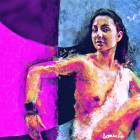
Starting Image:

There are a few ways in Photoshop to change your colored image to a greyscale/Black & White.
For this tutorial im just going to do the quickest way. But You can also try Channel Mixer found in Image/Adjustments and change it to monochromatic and adjust the color scales.
A quick way, go to Image>Mode>Greyscale. It will ask you discard color information, Click OK.

Then go to Image>Mode>Duotone

Now you will see your Duotone Palette.
Duotone Options:
Type: This allows you to select Monotone, Duotone, Tritone, and Quadtone.
Ink: The 1st box beside ink is your Curve options box, the 2nd box is your color selection box..
Overprint color: This will show you the range of color being overlay-ed on your image from highlight to shadows.
After Selecting what Type of tone range you want to work with, Double click on the ink 2, 3 , or 4 option and select your tones.

The tone selected can also be modified using the curve option box, by double clicking. Curves allows you to adjust the tonal range of an image to give you a greater range of adjustments. If you are not familiar with curves there are a few tutorials on the net that may help. In the mean time just play around to get an idea.

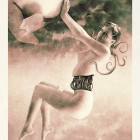
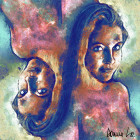
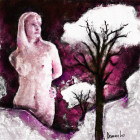
Duotone Example:


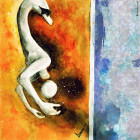
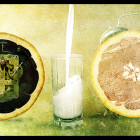
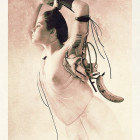
Tritone Example:


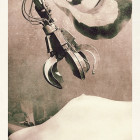
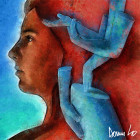
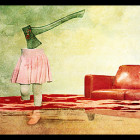
Quadtone Example:


The Overprint Colors button at the bottom is used mainly with Tritone and Quadtone images. It will give you a little more control on how the inks interact with each other.

I hope you enjoyed the tutorial. If you did I’d like to here your comment .
If you have any questions feel free to write them on the forum at ArtCone
Tutorial written by Jason Poston – Spllogics All rights reserved.